

Notice: Function WP_Scripts::localize was called incorrectly. The $l10n parameter must be an array. To pass arbitrary data to scripts, use the wp_add_inline_script() function instead. Please see Debugging in WordPress for more information. (This message was added in version 5.7.0.) in /var/www/staging/nav_timebull/wp-includes/functions.php on line 6170
How to use Gmail - A Step-by-Step Tutorial for Beginners - Times Bull
  • Gadgets
  • Sports
  • India
  • Entertainment
  • Business
  • Photo Gallery
  • Entertainment
  • latest news
  • India
  • Sports
  • Health
  • Hindi News
  • Astro
  • Recipes
  • Pravachan
  • Vastu
  • Privacy Policy
  • About US
  • Advertisement With Us
  • Contact us
  • Correction Policy
  • Disclaimer
  • DNPA Code of Ethics
  • Write For Us
Skip to content
  • Privacy Policy
  • About US
  • Advertisement With Us
  • Contact us
  • Correction Policy
  • Disclaimer
  • DNPA Code of Ethics
  • Write For Us
Times Bull

Times Bull

Times Bull

  • Gadgets
  • Sports
  • India
  • Entertainment
  • Business
  • Photo Gallery
  • Entertainment
  • latest news
  • India
  • Sports
  • Health
  • Hindi News
  • Astro
  • Recipes
  • Pravachan
  • Vastu
Home » How to use Gmail – A Step-by-Step Tutorial for Beginners
Posted inEducation

How to use Gmail – A Step-by-Step Tutorial for Beginners

by Arvind Kumar TiwariSeptember 7, 2024

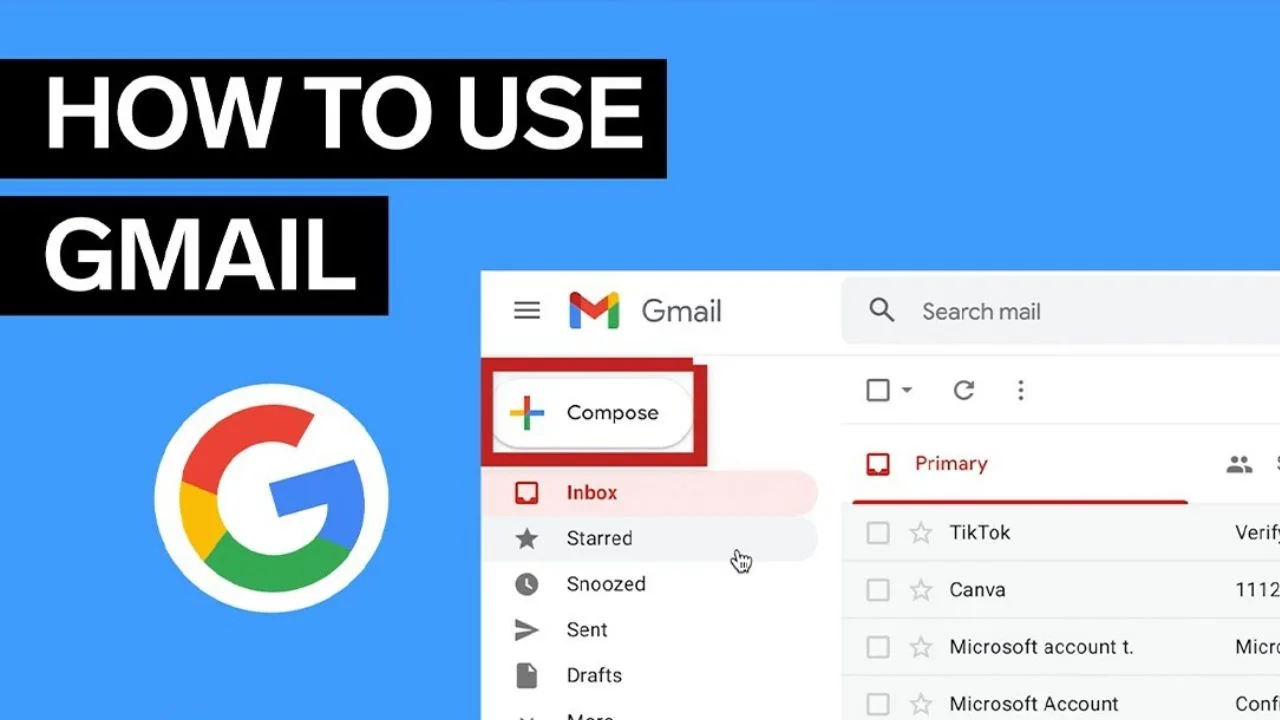
Gmail is a very popular email service that offers a user-friendly interface. Once signed in, you can compose and send emails, organize your inbox, and manage your settings.

Create a Gmail account

• Go to the Gmail website and open your web browser.
• On the Gmail sign-in page, you will find an option to create a new account.
• Type your first and last name, choose a username, and create a password. Gmail will ask you to retype the password.
• Enter your mobile number and a recovery email address, your birth date, and gender.
• Follow Google’s Terms and Privacy Policy.
• Google will send you a verification code on your number. Enter the code and confirm.
• Follow any additional prompts to finalize your account setup.

Sign in to Gmail

• Once your Gmail account is created, you will need to sign in to Gmail. com
• Type in your Gmail address and password then click Sign in

Sending on Email

• Click the Compose button which is located on the left side of your Gmail interface
• Enter the recipient’s email address in the new message and it will be easy to do.

You can add multiple recipients by typing in the new message

• Enter your email subject in the Subject field
• Enter your email content below the subject
• To add attachments, click on the paperclip icon at the bottom of the email window and then select Get file from the computer
• If everything is ready, click the Send button

Replying to Emails

• Click on the email you want to reply to
• When you open the email, click on the Reply button
• Write your reply in the text area
• After writing your reply, click Send
• Searching for Emails
• Top of the Gmail, search for what you are looking for
• You can search Operators can also do this by

Creating and using labels

• Labels is a folder in Gmail. When you assign a label to an email, the email is added to the Labels folder in the left-hand menu.
• Click Settings at the top right of the page, then click See All Settings.
• If you haven’t created any labels yet, it will appear empty.
• Create a New Label at the top of the Labels.
• Type the name you want for the label.
• Create Label Then
• You can also create a new label in the drop-down menu by clicking Create New and entering the label’s name.

Signing Out

• When you’re done using Gmail, it’s important to sign out, especially on shared computers.
• This is located in the top right corner of the screen.
• Click this option to log out of your Gmail account.

Latest News

  • Train Fire Update: पैसेंजर ट्रेन में भीषण आग लगने से मची अफरा-तफरी, प्लेटफॉर्म पर भागते दिखे लोग
  • test blog
  • TVS Raider 125 2026 Nitro Green Launch: Full TFT Display, New Colors Under ₹1 Lakh
  • India 2026 Mid-Size SUV Launches: XUV 7XO, Sierra EV, Scorpio N – Power vs Price Battle
  • BSNL SIM Now Available at Post Offices, Know How to Get It
Tagged: gmail account, gmail email, gmail labels how to use, gmail tips, gmail tips and tricks, how to create gmail labels, how to use dots in emails, how to use filters in gmail, how to use gmai, how to use gmail filter, how to use gmail offline mode

Post navigation

Previous Jeep Avenger: A New Electric SUV to Hit Indian Roads
Next Hero Xtreme 125R: Modern Design, Premium Features, Affordable Price
© 2026 Timesbull Powered by Newspack Privacy Policy

Gift this article


Notice: ob_end_flush(): Failed to send buffer of zlib output compression (1) in /var/www/staging/nav_timebull/wp-includes/functions.php on line 5493

Notice: ob_end_flush(): Failed to send buffer of zlib output compression (1) in /var/www/staging/nav_timebull/wp-includes/functions.php on line 5493