

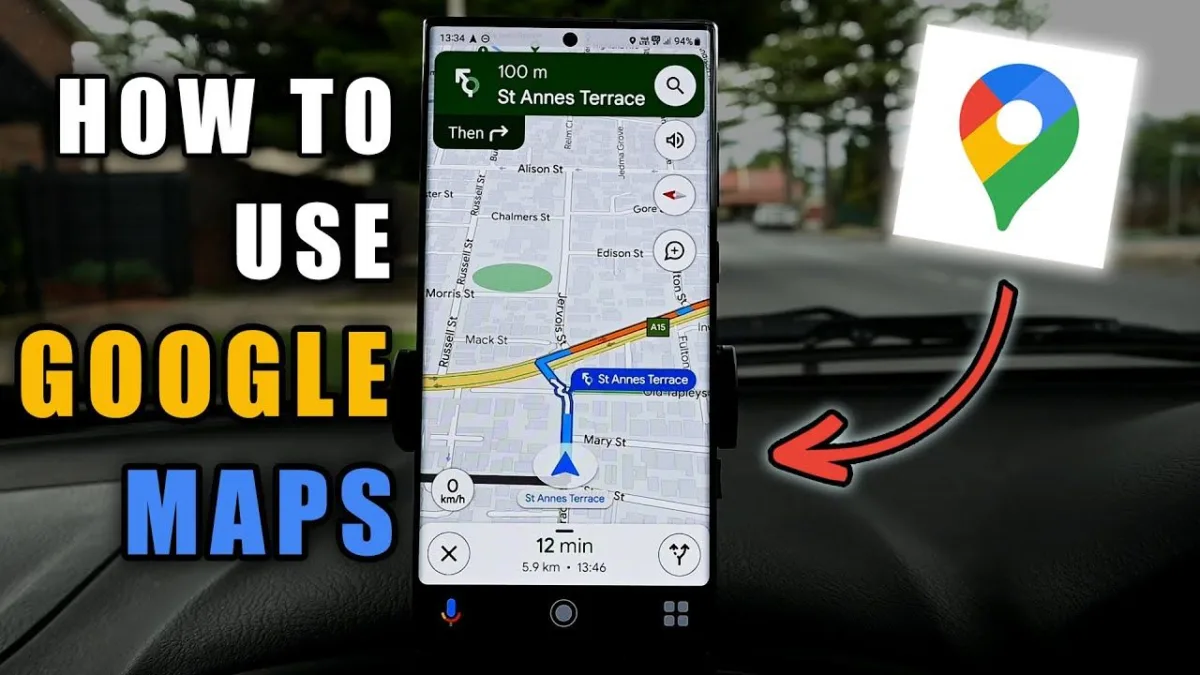
Google Maps is very useful. With it, you can see the directions of all the places while sitting. If you are new to Google Maps, then don’t worry, it is very easy.
Here is a step-by-step guide to help you get started.
Getting Directions
• You can use Google Maps on your mobile as well. You can also use it on a web browser. If you want to use Google Maps on your mobile, download the Google
Maps app from Google Play Store.
• It has an icon with a map background a red pin on it and the letter “G” on it.
• The search bar is at the top of the screen on smartphones and tablets and in the upper left corner on desktop web browsers.
Type an address and search.
- You can zoom in and out on the map by placing your thumb and index fingers on the screen and moving them apart or bringing them closer together.
- Press the button that says More to view a list of turn-by-turn directions.
- There is a no-direction button when using Google Maps on the web browser. It automatically gives you directions.
- If Google Maps gives you a lot of options, choose the route that takes the least time.
- Then you have to choose the method you want to take, such as two-wheeler, four-wheeler, public transportation, etc.
Finding Local Businesses and Services
Using the search bar, find specific businesses and services like restaurants nearby, gas stations, etc.
Explore nearby places
Click on Explore then to find restaurants, places, and more near your current location. You can also search for food hotels.
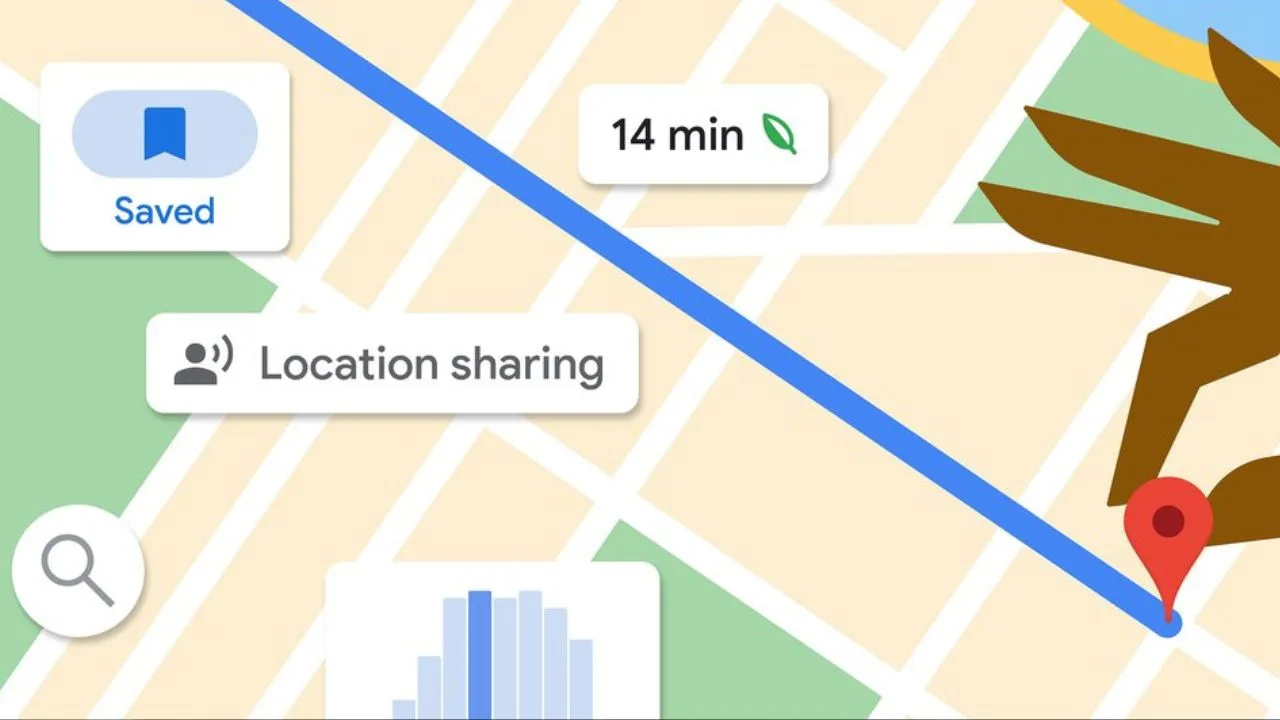
Adding Additional Stops
• Tap the Google Maps icon on your home screen or apps menu to open Google Maps.
• Use the search bar for the address and name of the place. Then tap Directions to get directions to the place.
• Your search bar has an icon with three dots to the right of the search bar at the top. This displays the options menu.
• Each time you add a new stop, an additional search bar will appear below the search bars.
• It’s the blue button below the list of stops at the top of the screen. This finalizes your route. You can tap Start to begin guided navigation.
Using Google Maps Offline
• Download Offline Maps – If you are traveling to a place where you have limits, you can download maps that are available offline. Open Google Maps, search for the area you want to download, tap on the location’s name, and select “Download.”
• Access Offline Maps – To access your downloaded maps, tap the menu icon in the top-left corner, then select Offline Maps. Here, you can view and manage your saved areas.